출처: https://www.ghacks.net/2017/07/18/how-to-delete-large-folders-in-windows-super-fast/
How to delete large folders in Windows super fast - gHacks Tech News
Find out how to delete huge folders with thousands of files and folders super fast on any version of the Microsoft Windows operating system.
www.ghacks.net
주의사항: 여기 사용되는 registry 관련내용은 system에 문제가 될수 있으므로, 사용하지 않는 것이 좋을 것 같다.
**********************************************************************
@ECHO OFF
ECHO Delete Folder: %CD%?
PAUSE
SET FOLDER=%CD%
CD /
DEL /F/Q/S "%FOLDER%" > NUL
RMDIR /Q/S "%FOLDER%"
if [%FOLDER:~-8%]==[WasteBin] MD %FOLDER%
set FOLDER=
EXIT
**********************************************************************
위의 내용을 입력하고 파일을 delete.bat로 저장합니다. 확장자가 .txt가 아니라 .bat인지 확인하십시오. 배치 파일은 보안 프롬프트와 함께 제공됩니다. 이렇게 하면 상황에 맞는 메뉴 항목을 실수로 선택한 경우 중요한 프로세스를 중지할 수 있는 옵션이 제공됩니다. Ctrl-C를 사용하거나 창의 x를 클릭하여 프로세스를 중지할 수 있습니다. 다른 키를 누르면 프로세스를 중지하는 옵션 없이 모든 폴더와 파일이 삭제됩니다. PATH 환경 변수인 위치에 배치 파일을 추가해야 합니다. 고유한 변수를 생성할 수 있지만 이미 지원되는 폴더로 이동할 수도 있습니다, 예를 들면 C:\Windows. 같은 폴더입니다.
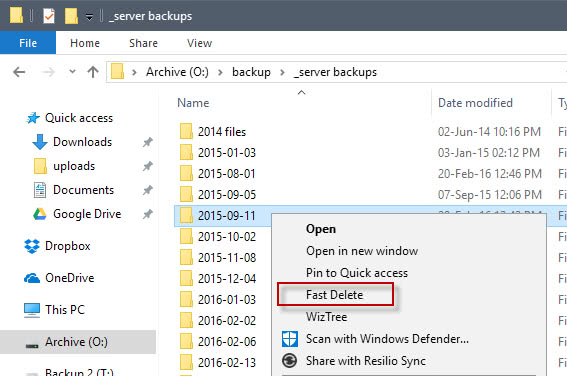
Do the following to add the new batch file to delete folders quickly to the Windows Explorer context menu.
- Tap on the Windows-key, type regedit.exe and tap in the Enter-key to open the Windows Registry Editor.
- Confirm the UAC prompt.
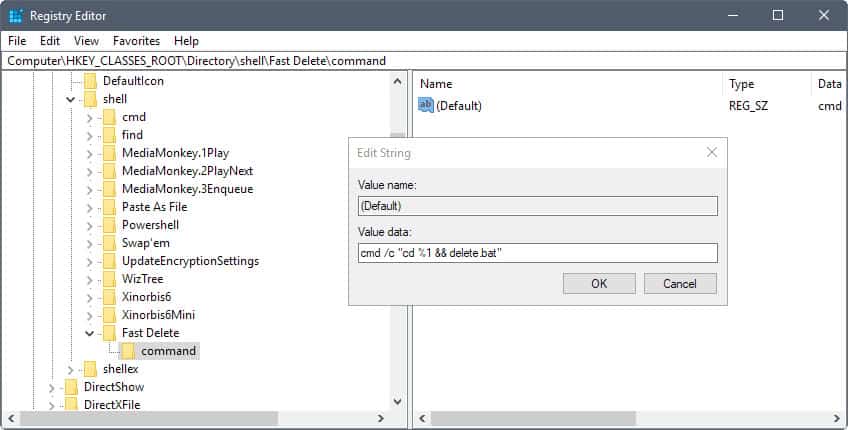
- Go to HKEY_CLASSES_ROOT\Directory\shell\
- Right-click on Shell and select New > Key.
- Name the key "Fast Delete"
- Right-click on Fast Delete, and select New > Key.
- Name the key command.
- Double-click on default of the command key.
- Add cmd /c "cd %1 && delete.bat" as the value.
Windows Registry Editor Version 5.00
[HKEY_CLASSES_ROOT\Directory\shell\Fast Delete1]
"Icon"="imageres.dll,3"
"Position"="Bottom"
[HKEY_CLASSES_ROOT\Directory\shell\Fast Delete1\command]
@="cmd /c \"cd %1 && delete2.bat\""
*********************************************************************************************
Windows Registry Editor Version 5.00
; created by Walter Glenn
; for How-To Geek
; article: http://www.howtogeek.com/281490/how-to-add-open-with-notepad-to-the-windows-context-menu-for-all-files/
[HKEY_CLASSES_ROOT\*\shell\Notepad123]
"Icon"="C:\\Windows\\System32\\notepad.exe,0"
"SeparatorBefore"=""
"SeparatorAfter"=""
[HKEY_CLASSES_ROOT\*\shell\Notepad123\command]
@="notepad.exe %1"
*********************************************************************************************
Windows Registry Editor Version 5.00
; created by Walter Glenn
; for How-To Geek
; article: http://www.howtogeek.com/281490/how-to-add-open-with-notepad-to-the-windows-context-menu-for-all-files/
[-HKEY_CLASSES_ROOT\*\shell\Notepad123\command]
*********************************************************************************************
Windows Registry Editor Version 5.00
[-HKEY_CLASSES_ROOT\Directory\shell\Fast Delete]
*********************************************************************************************

*********************************************************************************************
Windows Registry Editor Version 5.00
; 1)
[HKEY_CLASSES_ROOT\Directory\Background\shell\Google]
"Icon"="imageres.dll,231"
"Position"="Bottom"
[HKEY_CLASSES_ROOT\Directory\Background\shell\Google\command]
@="iexplore http://www.google.co.kr"
; 2)
[HKEY_CLASSES_ROOT\Directory\Background\shell\Settings]
"Icon"="shell32.dll,316"
"Position"="Bottom"
[HKEY_CLASSES_ROOT\Directory\Background\shell\Settings\command]
@="explorer.exe ms-settings:"
; 3)
[HKEY_CLASSES_ROOT\Directory\Background\shell\@@ Dos Command]
"Icon"="imageres.dll,262"
"Position"="Bottom"
[HKEY_CLASSES_ROOT\Directory\Background\shell\@@ Dos Command\command]
@="cmd"
; 4)
[HKEY_CLASSES_ROOT\Directory\Background\shell\@@ Notepad]
"Icon"="shell32.dll,70"
"Position"="Bottom"
[HKEY_CLASSES_ROOT\Directory\Background\shell\@@ Notepad\command]
@="notepad.exe"
; 5)
[HKEY_CLASSES_ROOT\Directory\Background\shell\Calculator]
"Icon"="shell32.dll,192"
"Position"="Bottom"
"SeparatorAfter"=""
[HKEY_CLASSES_ROOT\Directory\Background\shell\Calculator\command]
@="calc.exe"
; 6)
[HKEY_CLASSES_ROOT\*\shell\open with notepad]
@="@@ Open with Notepad"
"Icon"="shell32.dll,70"
[HKEY_CLASSES_ROOT\*\shell\open with notepad\command]
@="notepad.exe %1"
; 7)
[HKEY_CLASSES_ROOT\Directory\shell\runas]
@="@@ Open Command Window Here (Administrator)"
"Icon"="imageres.dll,262"
[HKEY_CLASSES_ROOT\Directory\shell\runas\command]
@="cmd.exe /s /k pushd \"%V\""
; 8)
[HKEY_CLASSES_ROOT\Directory\shell\Fast Delete]
"Icon"="imageres.dll,3"
"Position"="Bottom"
[HKEY_CLASSES_ROOT\Directory\shell\Fast Delete1\command]
@="cmd /c \"cd %1 && delete2.bat\""
*********************************************************************************************
--------------------***************--------------------------********************
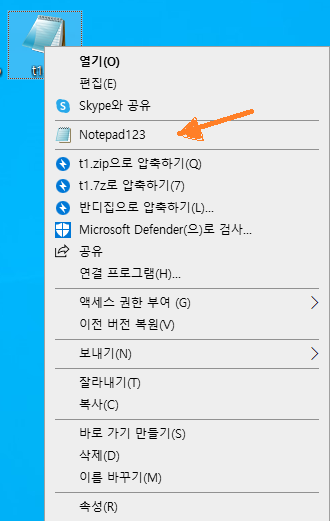
아래 그림과 같이 파일을 선택하고 우클릭을 했을 떼, 노트패드 열기가 가능해지도록 하는 Registry 명령어가 있다.
(아래 그림에서는 Notepad123이라고 했는데, 이는 아무글자나 입력하면 된다는 예제이고, 실제로는 Open Noete Pad 등과 같이 하면 된다.)
--------------------***************--------------------------********************
Windows Registry Editor Version 5.00
; created by Walter Glenn
; for How-To Geek
; article: http://www.howtogeek.com/281490/how-to-add-open-with-notepad-to-the-windows-context-menu-for-all-files/
[HKEY_CLASSES_ROOT\*\shell\Notepad123]
"Icon"="C:\\Windows\\System32\\notepad.exe,0"
"SeparatorBefore"=""
"SeparatorAfter"=""
[HKEY_CLASSES_ROOT\*\shell\Notepad123\command]
@="notepad.exe %1"
--------------------***************--------------------------********************
'윈도우즈' 카테고리의 다른 글
| 윈도우즈 시작 프로그램 폴더의 위치 (0) | 2021.09.19 |
|---|---|
| 윈도우즈 탐색기를 기본 보기로 변경하기 (0) | 2021.09.16 |
| 다양한 신한카드 홈페이지 로그인 방법 (0) | 2021.09.12 |
| 농협 공인인증서 갱신 (0) | 2021.08.26 |
| 윈도우즈 단축키 (0) | 2021.08.24 |


댓글